
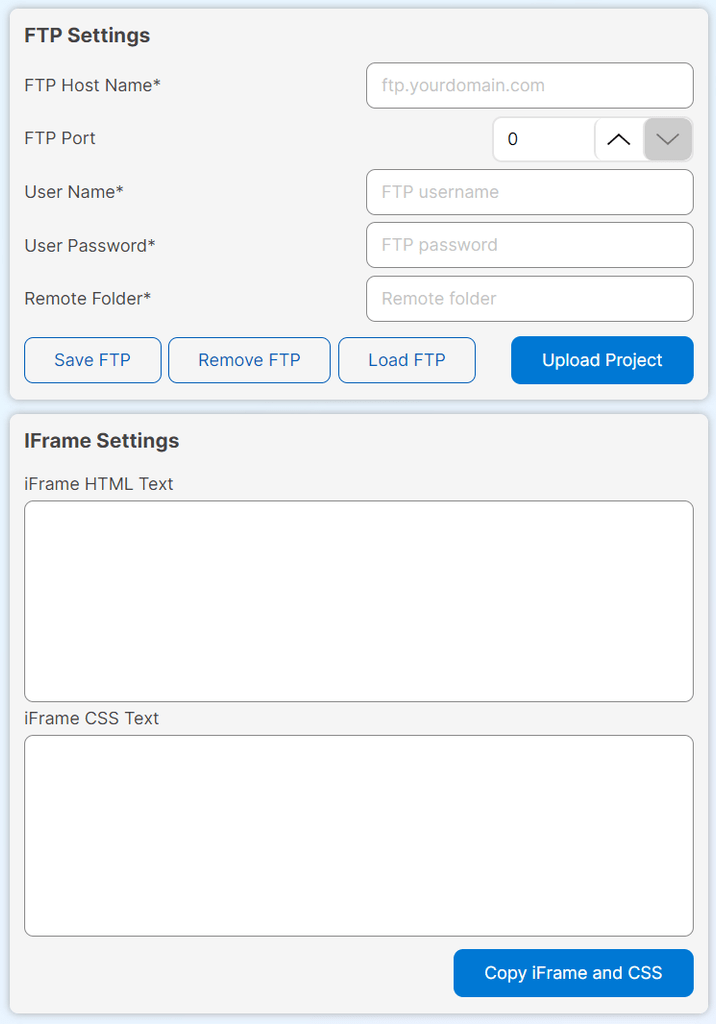
On FTP Export Setup tab page you can configure FTP credentials and export your project directly to a remote server. Whether you’re deploying a website, uploading project assets, or syncing files, this tool streamlines the process with secure and flexible options.
Connection Settings
FTP Host Name
Enter the address of your FTP server. Example: ftp.yourdomain.com
FTP Port
Specify the port used for FTP connection. If you are not sure, leave this value at 0 to auto-detect the correct port (e.g., 21 for FTP, 22 for SecureFTP).
User Name
Set your FTP account username.
User Password
Set your FTP account password. (Stored securely)
Remote Folder
The target directory on your server where the project will be uploaded. Example: public_html/your-folder or www/other-folder
NOTE
All files from the project folder will be uploaded directly into the selected destination directory — not as a separate project folder.
This means the files will mix with any existing files in that directory, which can make management difficult.
To avoid this, make sure to select or create a dedicated subfolder on the server so your project files remain separated from other files.
If subfolder does not exist, it will be created automatically.
Save FTP Info
Save your FTP credentials and settings for future use.
Remove FTP Info
Clear all saved FTP data from the app.
Load FTP Info
Load saved FTP credentials from the app.
Upload Project
Initiate the upload process to the specified remote folder.
After your project is successfully uploaded to the remote server iFrame HTML Text and iFrame CSS Text fields are populated with auto generated code.
You can use copy button to select and copy text fields to clipboard for later use.
Setup Tips
- Leave the Port field as
0to enable automatic detection of the correct port. - Ensure the Remote Folder exists and has appropriate write permissions.
- Double-check your username and password to avoid authentication errors.
- Application is configured to automatically set and use best and most secure configuration available on the remote server.