
On this tab page you can set your scene navigation in application frontend or completely disable this functionality.
Scene Navigaton Types
Each control type fully supports mouse and touch (On touch screens) interactions with your 3D Object or scene.
NOTE
Each control type interact with your scene with following mouse or touch commands.
Rotation: For scene rotation use left mouse button click and drag or touch and drag with one finger.
Zoom: For scene zooming use mouse wheel button or two finger pinch command on touch screens.
Pan/Move: For scene panning use right mouse button or two finger touch and drag command
- Orbit Controls
Designed for rotating, zooming, and panning around a target point in a 3D scene.- The camera orbits around a fixed target point.
- Vertical rotation is configured to prevent the camera from flipping upside down.
- Enforces a consistent “up” direction for the camera (usually the Y-axis).
- Trackball Controls
Provides freeform rotation, zooming, and panning without enforcing a fixed “up” direction.- Allows the camera to rotate freely in all directions, including upside down.
- Offers more flexibility compared to Orbit Controls but can be disorienting if not managed carefully.
- Arcball Controls
Allow intuitive rotation of objects or the camera around a pivot point.- The rotation mimics the movement of a virtual trackball, providing smooth and natural interactions.
- Often used for object manipulation rather than camera control.
- Drag Controls
Use drag controls to move objects around in scene 3D space. You can do this with click and drag left mouse button or with one finger touch and drag command on touch screens.
Add drag controls: You can enable or disable drag controls for your scene. This functionality works with all other control types, but you must click outside object area to use camera navigation control.
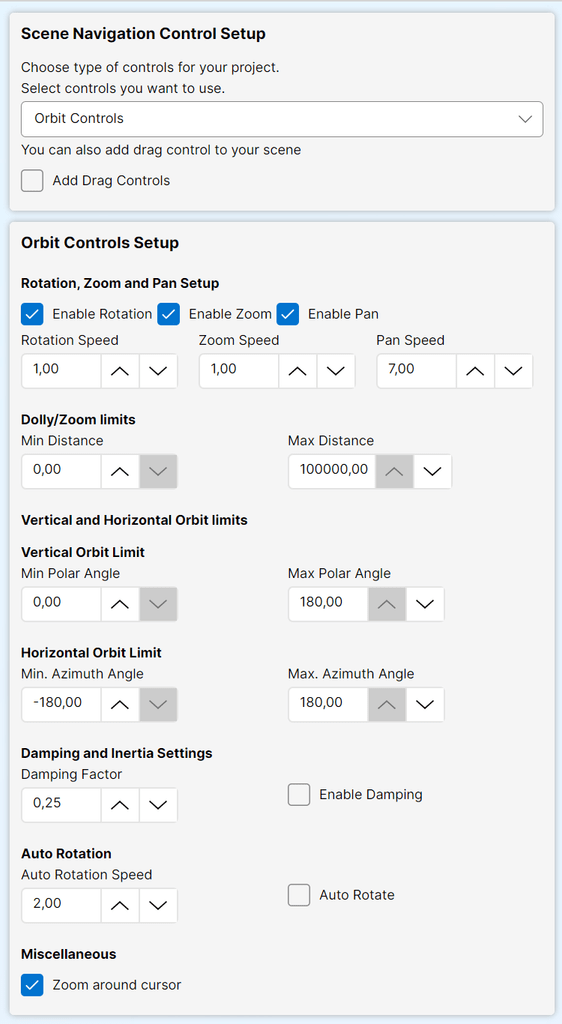
Orbit Controls
Rotation, Zoom and Pan Setup
- Enable Rotation
Enable or disable camera rotation. - Rotation Speed
Adjust speed of the camera rotation. - Enable Zoom
Enable or disable the camera zooming (dollying). - Zoom Speed
Adjust speed of the camera zooming. - Enable Pan
Enable or disable camera panning. - Pan Speed
Adjust speed of the camera panning.
NOTE
The camera rotation is enabled on both axis, vertical and horizontal.
You can disable the camera rotation axis by setting the min and max values of the polar angle or azimuth angle to the same value.
Dolly/Zoom Limits
- Min. Distance
Adjust how far camera can zoom in. - Max. Distance
Adjust how far camera can zoom out.
Vertical and Horizontal Orbit Limit
Vertical Orbit Limit
Limit vertical camera movement from the Minimum Polar Angle to the Maximum Polar Angle. A Polar Angle of 0° represents the topmost point, 180° is the bottommost point, and 90° is the ground level.
- Min. Polar Angle
Adjust lower limit on the control. - Max. Polar Angle
Adjust upper limit of the control.
Horizontal Orbit Limit
Limit horizontal camera movement from the Minimum Azimuth Angle to the Maximum Azimuth Angle. Here, 0 represents the current camera position, -180 corresponds to a half-circle clockwise (left), and 180 corresponds to a half-circle counterclockwise (right). Default is infinity.
- Min. Azimuth Angle
Adjust the lover limit. - Max. Azimuth Angle
Adjust the upper limit.
Damping and Inertia Settings
Damping, or inertia, smoothens the camera movement, making interactions feel more natural. This will give you a sense of weight to the control.
- Enable Damping
Enable or disable damping. - Damping Factor
Adjust damping factor. How “Weight” you want to add to your control.
Auto Rotation
- Auto Rotate
Enable or disable auto rotation of the camera. - Auto Rotation Speed
Adjust speed of auto rotation.
Zoom around cursor: Enable or disable zooming around mouse cursor.
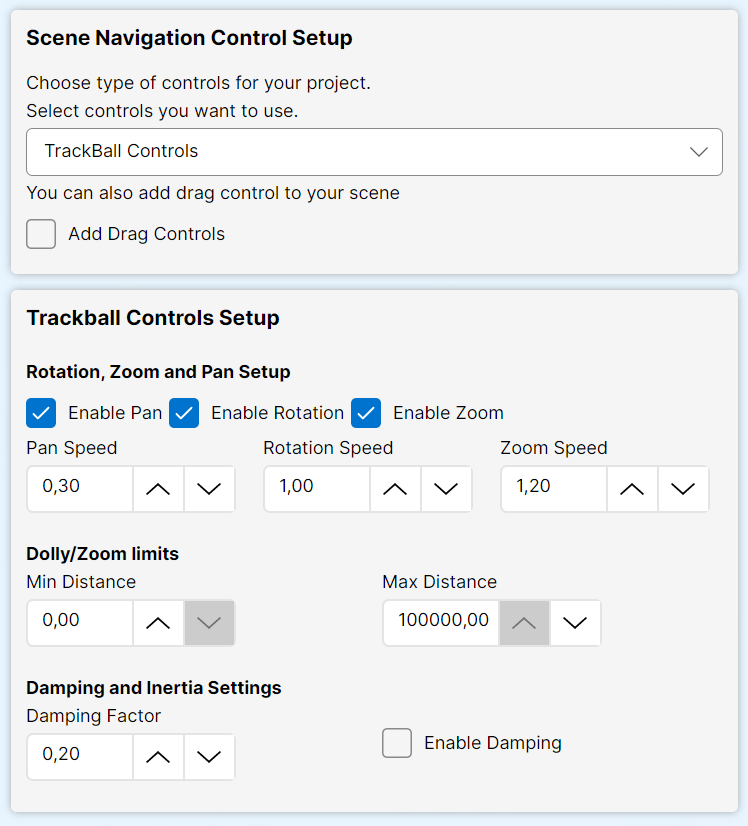
TrackBall Controls
Rotation, Zoom and Pan Setup
- Enable Rotation
Enable or disable camera rotation. - Rotation Speed
Adjust speed of the camera rotation. - Enable Zoom
Enable or disable the camera zooming (dollying). - Zoom Speed
Adjust speed of the camera zooming. - Enable Pan
Enable or disable camera panning. - Pan Speed
Adjust speed of the camera panning.
Dolly/Zoom Limits
- Min. Distance
Adjust how far camera can zoom in. - Max. Distance
Adjust how far camera can zoom out.
Damping and Inertia Settings
Damping, or inertia, smoothens the camera movement, making interactions feel more natural.
- Enable Damping
Enable or disable damping. - Damping Factor
Adjust damping factor. How “Weight” you want to add to your control.
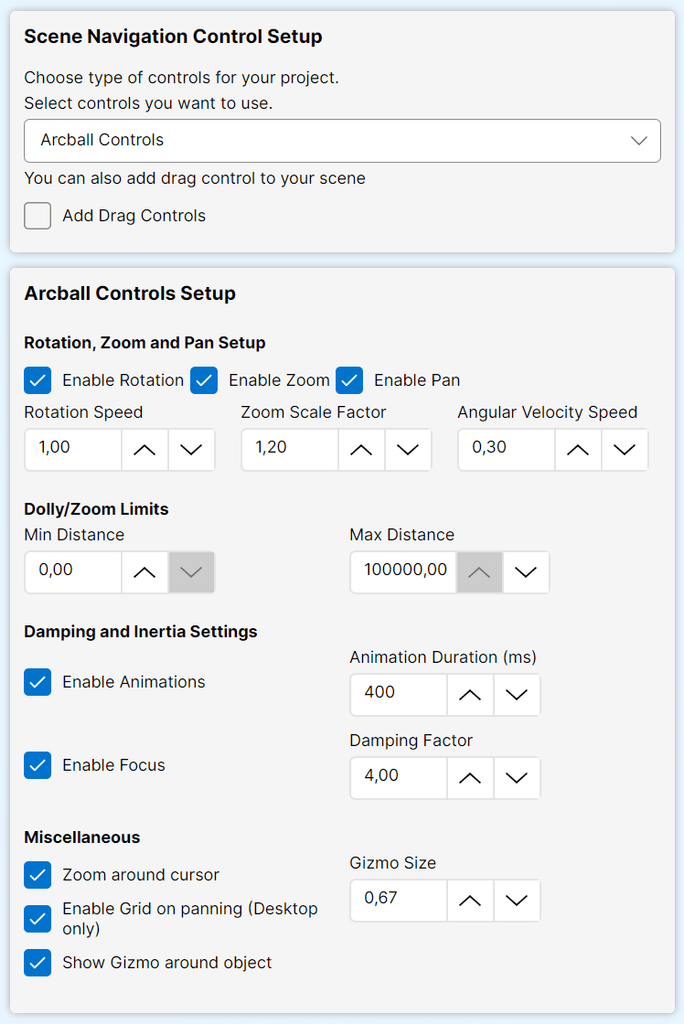
ArcBall Controls
Rotation, Zoom and Pan Setup
- Enable Rotation
Enable or disable camera rotation. - Rotation Speed
Adjust speed of the camera rotation. - Enable Zoom
Enable or disable the camera zooming (dollying). - Zoom Scale Factor
Adjust the scaling factor to control the camera zooming operation. - Enable Pan
Enable or disable camera panning. - Angular Velocity Speed
Adjust maximum angular velocity allowed at the start of the camera rotation animation.
Dolly/Zoom Limits
- Min. Distance
Adjust how far camera can zoom in. - Max. Distance
Adjust how far camera can zoom out.
Damping and Inertia Settings
- Enable Animations
Enable or disable animations for rotation and focus operations. - Enable Focus
Enable or disable focus on double click or double tap on touch screens. - Animation Duration (ms)
Adjust the duration of focus animation if animation is enabled. - Damping Factor
Adjust rotation damping factor if animations are enabled. - Zoom Around Cursor
Enable or disable zooming around mouse cursor. - Enable grid on panning (Desktop only)
Enable or disable vertical grid when panning your scene. - Show gizmo around object
Enable or disable rotation gizmo around your object. - Gizmo Size
Set gizmo size in the scene.
Update Controls
Click update controls button to save all settings used on “Orbit Controls” page to your project file. After this, your changes should be visible in web browser preview window on right side of application.